
Translating Pickup labels
Last updated: March 1, 2026
Customize all text labels shown in the store pickup date and time selector widget.
The Pickup section contains all the text labels that customers see when they choose store pickup at checkout — including the date picker heading, time slot labels, location selector, and any messages shown in the widget.
How to translate Pickup labels
Go to the Translations page.
Make sure you have added the language you want to translate into (see "How to add a language").
In the right panel, find the "Pickup" collapsible card.
Click "Show" to expand the Pickup section.
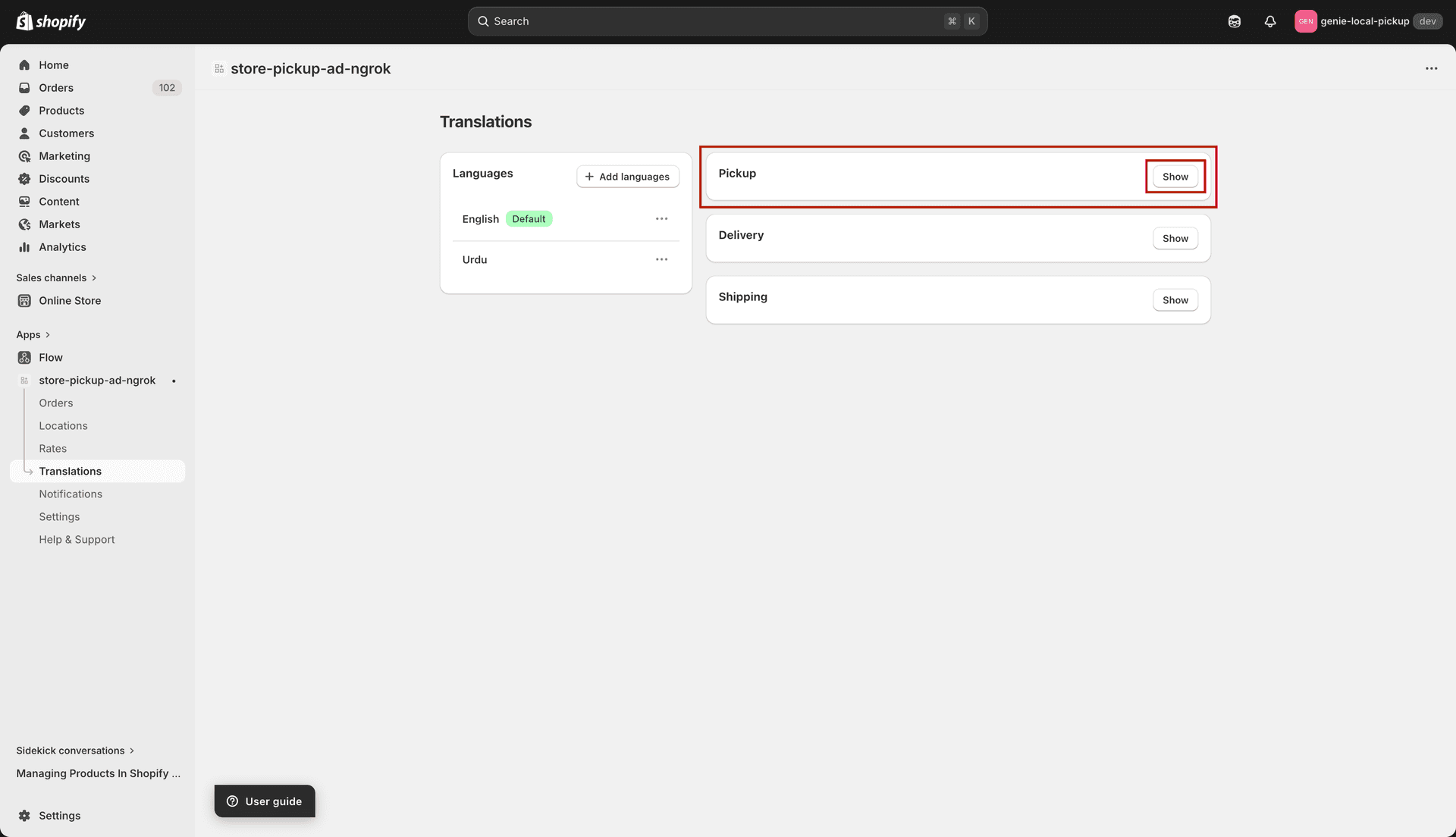
Expand the Pickup section to see all translatable labels
At the top of the section, click the language tab you want to translate for (e.g. French, German).
Each label field shows the label name on the left and an input box on the right. Enter your translated text in the input box.
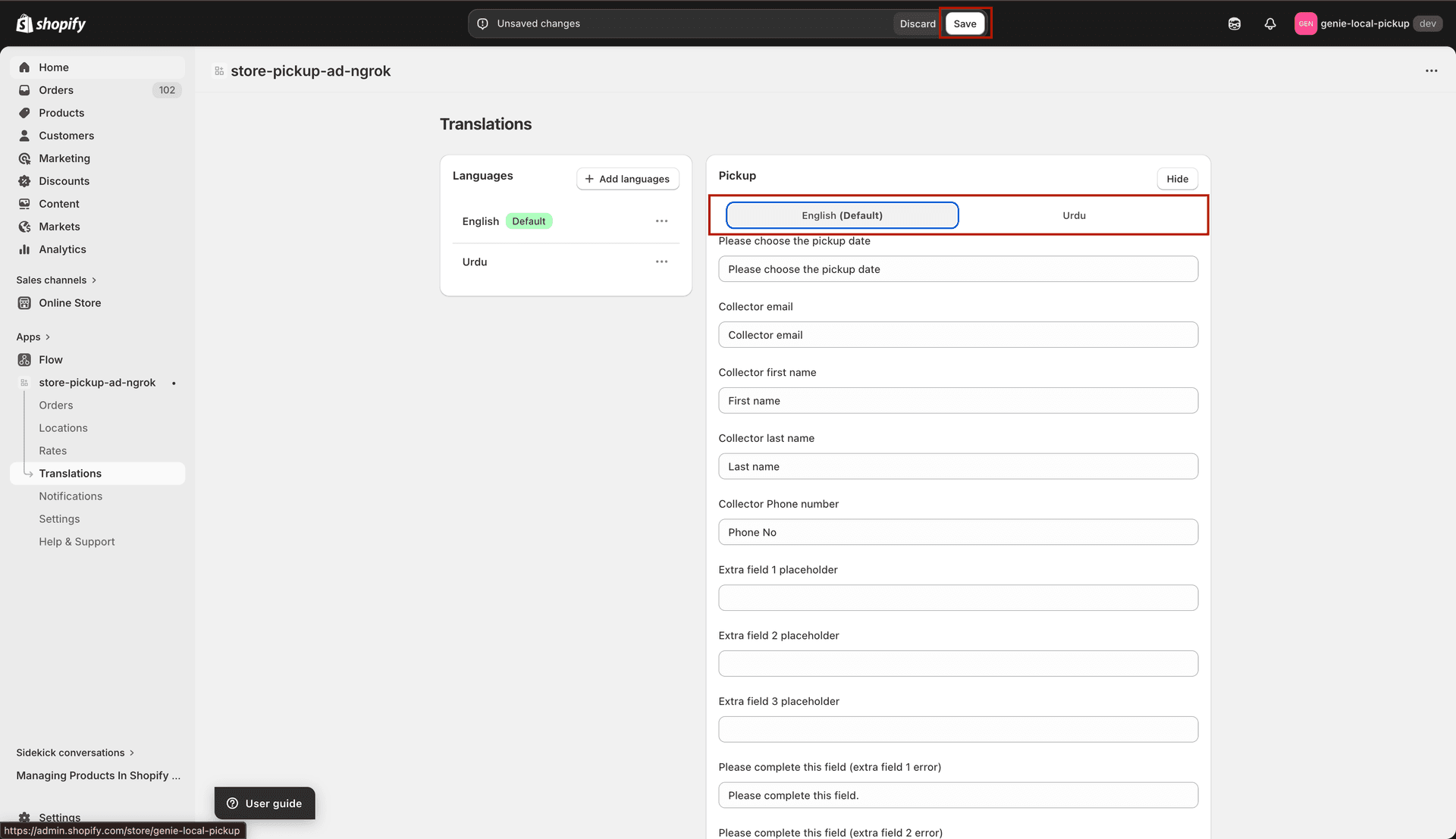
Fill in each label field with the translated text for the selected language
After filling in the fields, click "Save" in the save bar at the top of the page.
If you leave a field empty, the app falls back to the default English label for that field. You only need to fill in the labels you want to change.