
Translating Shipping labels
Last updated: March 1, 2026
Customize text labels shown in the standard shipping section of the checkout widget.
The Shipping section contains the text labels shown in the standard shipping part of the widget — the section customers see when they choose regular shipping (not pickup or local delivery) at checkout.
How to translate Shipping labels
Go to the Translations page.
In the right panel, find the "Shipping" collapsible card.
Click "Show" to expand the Shipping section.
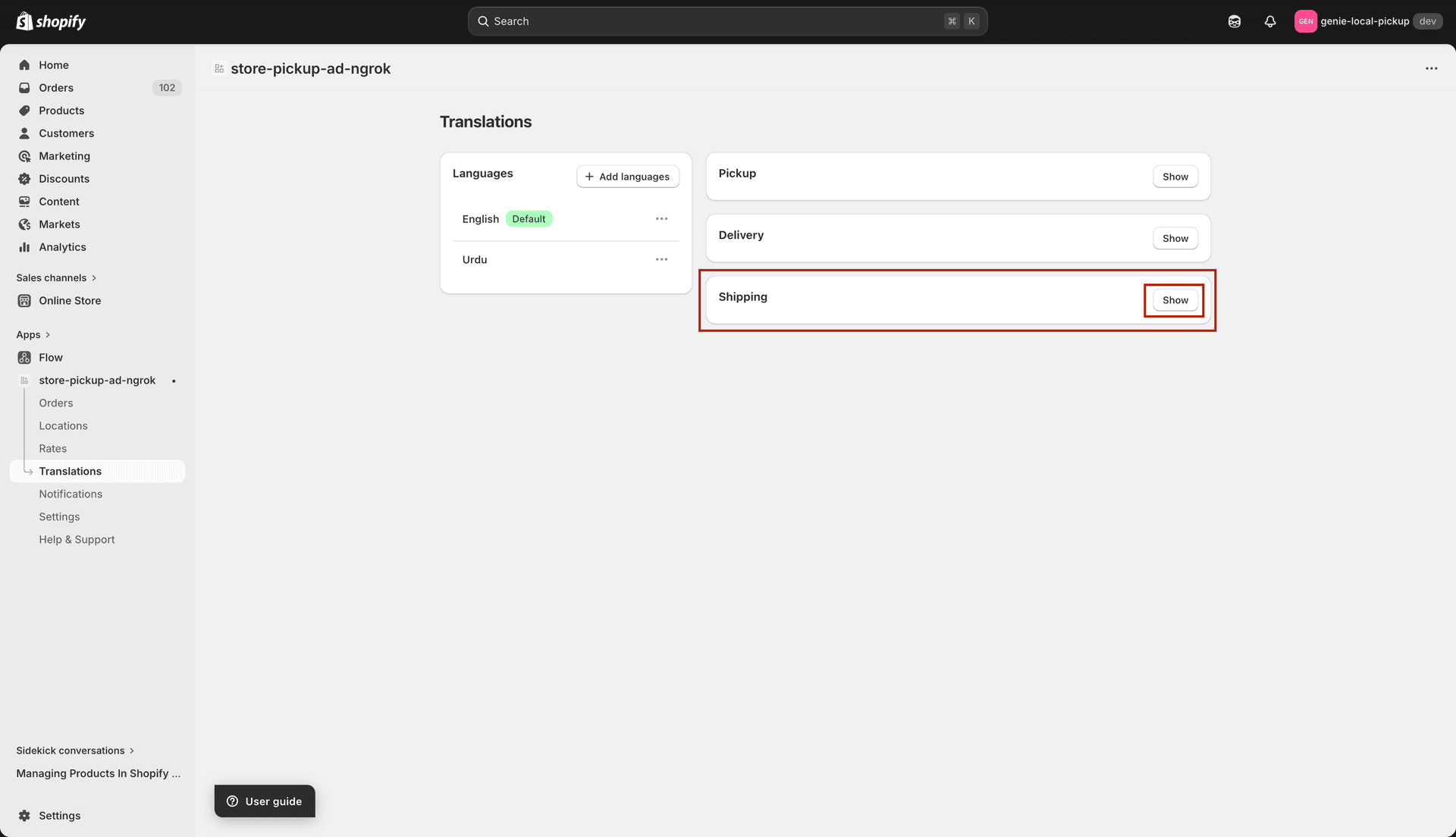
Expand the Shipping section to translate standard shipping labels
Click the language tab for the language you want to translate.
Fill in the translated text for each label.
Click "Save" in the save bar.
If your store does not offer standard shipping (only pickup and delivery), you can leave the Shipping section blank — those labels will not appear on your storefront.
What's Next